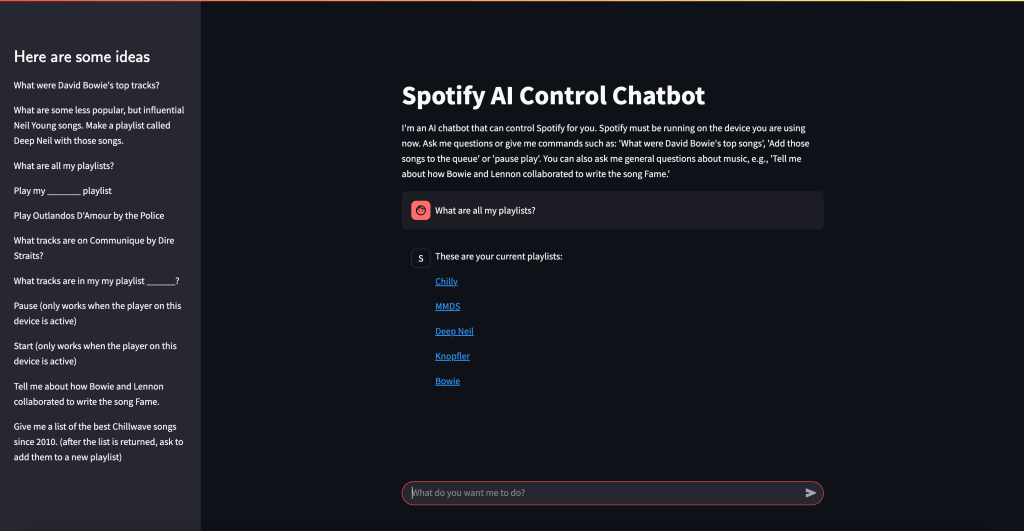
Large Language Models (LLMs) have an amazing ability to generate text based on a user’s prompt. But can we use LLMs to actually control a real world “thing?” Or are they really just useful for generating text?
It turns out that using an LLM to control something in the real world is quite doable now. Using OpenAI’s tools functions, we can give an LLM like OpenAI enough knowledge to let it choose an external API to call, based on the situation at hand. We “force” OpenAI to select an API call, rather than just blather on using unstructured text, like it ordinarily does. The API could be used to control another software application, or it could even control a physical object like a robot.
So, for example, what if a user is trying to brainstorm a list of songs, and use it to create a Spotify playlist? OpenAI should help us take that list of songs and feed it to the Spotify API that creates a playlist. Or if the user wants to start playing a certain album, the LLM should help us call the Spotify API to play the album by giving us the exact Spotify API call to make, and the specific parameters to use (e.g., album name, artist). Then our software can do the rest, by making the appropriate API call.
Current Functionality
My chatbot includes the following functionality:
- Have a conversation about music that (hopefully) results in some suggested tracks. The user can then ask the bot to add the tracks to their Spotify queue or a playlist
- List your current Spotify playlists
- Create a new Spotify playlist based on some tracks, or add tracks to an existing playlist
- List the tracks within a playlist, or on an album
- Add tracks to the queue
- Start to play a specific album, song, or playlist
- List the top tracks for an artist (according to Spotify)
- Pause play
- Start playing again
How it Works
Streamlit provides a basic framework for a web chatbot. Once the user types their prompt into the chatbot, we send it to OpenAI’s API. However, a key thing we do in our API call to OpenAI is to utilize OpenAI’s “tools” capabilities. Our tools.py file (see Github) explains to OpenAI all of the API functions we want it to consider when responding to the user’s prompt. This biases OpenAI towards providing us with an API call, rather than just some text. If OpenAI responds with a “tools” call we run some code that helps us call the corresponding Spotify API, interpret the result, and display it to the user in the chatbot. So, for example, if the user is conversing with the chatbot about Bowie’s top songs, the user might ask the bot to create a playlist using those tracks. OpenAI will realize that we should use the Spotify API call to create a new playlist, and feed in those Bowie tracks as parameters. Then, Spotify will create the new playlist. So we’ve taken a conversation about music with a chatbot, and turned it into a real-world action–creating a Spotify playlist in your Spotify account.
Steps to Set Up the Chatbot
You’ll want to modify the code to your preferences. But to get started, follow these steps:
1. Create an “App” in the Spotify Console
First, create a Spotify App in the Spotify Developer Console. You can see how to do that here. You’ll get a couple of important items that you’ll need later: your Spotify Client ID and your Spotify Client Secret. I believe you may need to be a premium Spotify account holder to use the API.
2. Get an OpenAI API Key
Create an OpenAI developer account using their API console and get an API key. You’ll need to provide your credit card and put down some money, but the costs for LLM services have been dropping like a rock lately. So just put down a few dollars and keep an eye on your usage. We’ll use OpenAI’s 4o-mini model, which is a great value. It’s much less expensive than their prior models, and seems to work very well for applications like ours. And it’s quite fast.
3. Install the Python Libraries
My code is in Github. The key libraries you’ll need to install are:
- spotipy: A Python SDK for the Spotify API
- openai: Python SDK for using OpenAI
- streamlit: A basic web server tool that we’ll use to build the chatbot
4. Download the Github Files
Download the files from my Github repo to your local machine. You can also use a server, but it’s best to get it working locally first. That will be enough to control your own Spotify player, although you’d need to deploy it on a server to make it available to others.
5. Edit the Config File
Edit the following values in the config.toml file:
- client_id: This is the Spotify API Client ID you got from the Spotify API Console
- client_secret: This is the Spotify API Client Secret, also from Spotify’s Console
- redirect_uri: A URL to your application that Spotify will invoke as part of the authentication process. If this is your local workstation/PC, then you can use http://127.0.0.1:8501. If this is a server, use the IP of the server with the 8501 port. 8501 is the port used by Streamlit to receive incoming requests. You also need to enter this URL in the Spotify API console as a redirect URI for your Spotify “App.” It should be EXACTLY the same as in the config file. The reason you need to enter your URL in the Spotify console is that Spotify wants to ensure (for security reasons) that the authentication process redirects only to machines that the app developer (i.e., you) knows about, so nobody can hijack your app.
6. Create an Environment Variable for the OpenAI API Key
On Linux or a Mac, go to the command line and use a statement like this (you can look up how to do this in Windows, if needed):
export OPENAI_API_KEY=<Your OpenAI Key goes here>7. Run the Streamlit application
Streamlit is a Python framework for creating basic web applications and chatbots. The main file for our app is spotify.py. Additionally, tools.py and utils.py are used by the main file, as is the config file: config.toml. Start up the web site by cd’ing to the directory that holds the program files and typing (from the command line):
streamlit run spotify.pyIf all goes well, Streamlit will tell you that you can fire up your chatbot in a browser with a URL like http://localhost:8501 (for a local Mac or PC installation), or http://xx.xx.xx.xx:8501 for a server-based installation, where xx.xx.xx.xx is the IP address of the server. The most common issues you might encounter will be failure to enter the correct parameters in the config.toml file or to create the correct OpenAI key as an environment variable, or failure to correctly enter the redirect URI in the Spotify API console.
8. Spotify Authentication
When a user hits the Streamlit web site, they must authenticate with Spotify in order to let the web app access the user’s Spotify data, and have the ability to take action on behalf of the user. Once the user pulls up the Streamlit web site, they’ll see a screen like this:

The user should click the Log In to Spotify button, and this starts the authentication process. The user will be normally be taken to a Spotify web page where they must enter their password or enter a code sent to their email address. They must accept the “scope” of our application, which means they accept that the app can see certain data, and modify it. Each user authenticates separately. The cool thing about this is that the application can access their personal Spotify playlists, and create new playlists on their behalf, etc. The app requires the user to authenticate each time they use the app because we don’t keep their Oauth2 token and authorization code around on the server, and because the token that Spotify provides our app is valid only for a limited time (about an hour).
Authentication is the trickiest part of the project. You might need to fiddle with this a while. If you leave out a step, or if the redirect URI that you entered in the config.toml file doesn’t match EXACTLY the redirect URI’s you entered in the Spotify API console for your Spotify App, it won’t work.
I tried to fire this up in the cloud using Amazon Lightsail Containers, but I believe the load balancer that’s in front of the AWS container was mucking things up, and I wasn’t able to authenticate to Spotify. I was more successful with Amazon Lightsail Instances, and got this working in a short time. There’s no load balancer in front of the instance unless you explicitly put one there, so that seems to simplify things. A Linux Lightsail instance (i.e., virtual server) that’s sufficient for this project costs only $7-$12/month, and they sometimes offer free trials (I got 90 days free).
9. Using the Spotify Chatbot!
Once you get this working, you’ll probably want to modify it to suit your needs. A few words of wisdom:
- Modify the prompts and tools functions based on the results you’re getting. If you find that you would have expected OpenAI to make a certain tools call, after the user enters certain user prompts, and that doesn’t happen, then experiment with the prompts and tools definitions. Make if very clear to OpenAI what function call to use in various circumstances, if it’s not doing that. Look in the tools.py file to see how I handled it.
- Error handling can be tricky with the Spotify API – I’ve tried to handle typical errors that might crop up, but sometimes you might find that I assumed a certain format for the Spotify API response, and that didn’t occur. So you can certainly improve upon this.
- You DO need to have the Spotify app installed and fired up on whatever device you are using this on. So if you’re running this on a web browser on your Mac, ensure you have the Spotify Mac app installed and running on your Mac.
- I’ve primarily tested this on a Mac. In theory it should work on other devices but I found that it didn’t work quite as well on an iPhone (it seemed like the user got kicked out after a short time and had to keep reauthenticating). So getting this working smoothly on other devices would require some additional work.
- Certain Spotify API functions will only work if you have the Spotify app running and a song is playing. e.g., you can’t pause playback if the app isn’t playing.

 Mike's ML