Here’s a blog post I contributed to the Box Developer Blog. It explains how you can use Box AI and Microsoft Power Automate to automate email replies to your customers’ FAQs. It’s easy to do and quite powerful!

Introduction
Does your business have customers that contact you by e-mail with routine questions? Are many of these questions repetitive and routine? In the Commercial Real Estate business, tenants of large properties typically e-mail questions to a building management team, who answers these using a shared e-mail box. Sample questions might be “where can I park my bike?”, or “what are the rules for contractors while on site?” We’d like to automate the answering of routine, repetitive questions, while focusing team-member efforts on answering the more difficult, non-routine questions.
Solution Overview
In this blog post, I’ll show how you can create a Power Automate cloud flow that receives e-mails, calls the Box AI API to generate automated answers to common questions, and replies by e-mail to customers who originated the questions.
Details
To get started, we need one or more Frequently Asked Questions (FAQ) documents. These should contain the top questions we get from our customers, as well as the answers. We’ll put these into a Box hub (a collection of content) in Box. We need to note the Box ID of the hub, since we’ll need that later for the Box AI API calls in our Power Automate flow. You can get the Box hub ID from the URL in your browser when you view a hub in Box.
Figure 1 shows an overview of the Microsoft Power Automate flow that manages this process. First, we receive an e-mail into a specific Office 365 e-mail box. You might want to create a special e-mail box for questions from your customers so it’s clear that every e-mail to that account is a question to be answered. Receiving an e-mail triggers our Power Automate flow.
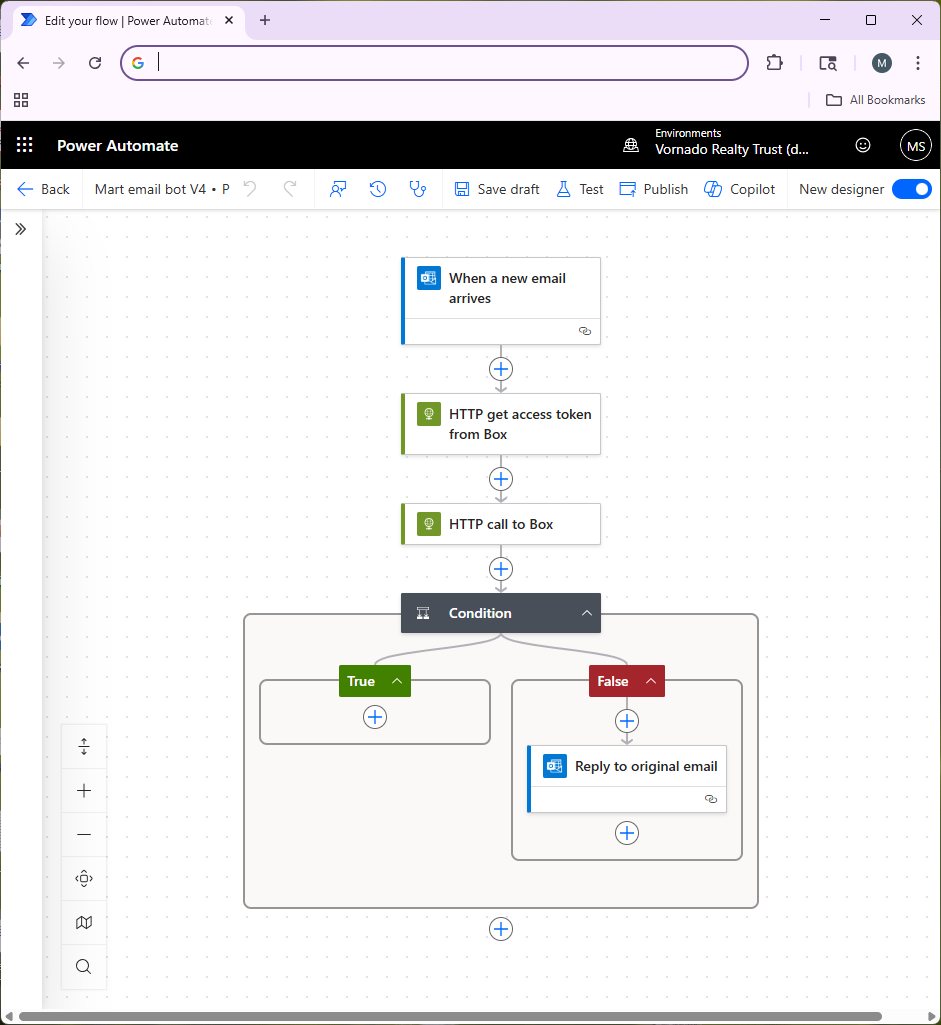
Next, our Power Automate flow makes an API call to authenticate to the Box API (the step called “HTTP get access token from Box”). Ahead of time, you should use the Box Developer Console to set up a Box Platform App (using Client Credentials Authentication) and get that approved by your Box Administrator. This lets you create credentials for the Box API, which we store as environment variables in Power Automate. Ensure that you go into the Box web UI and collaborate the hub containing your FAQ documents with the service account for your Platform App so that it has access to the content in the hub. This is important — you will get errors from the Box API if your Box Platform App doesn’t have access to your hub.
In the next step in the flow (“HTTP call to Box”), we take the user’s question from their e-mail and send it to the Box AI API. Figure 2 shows how to do that in more detail.
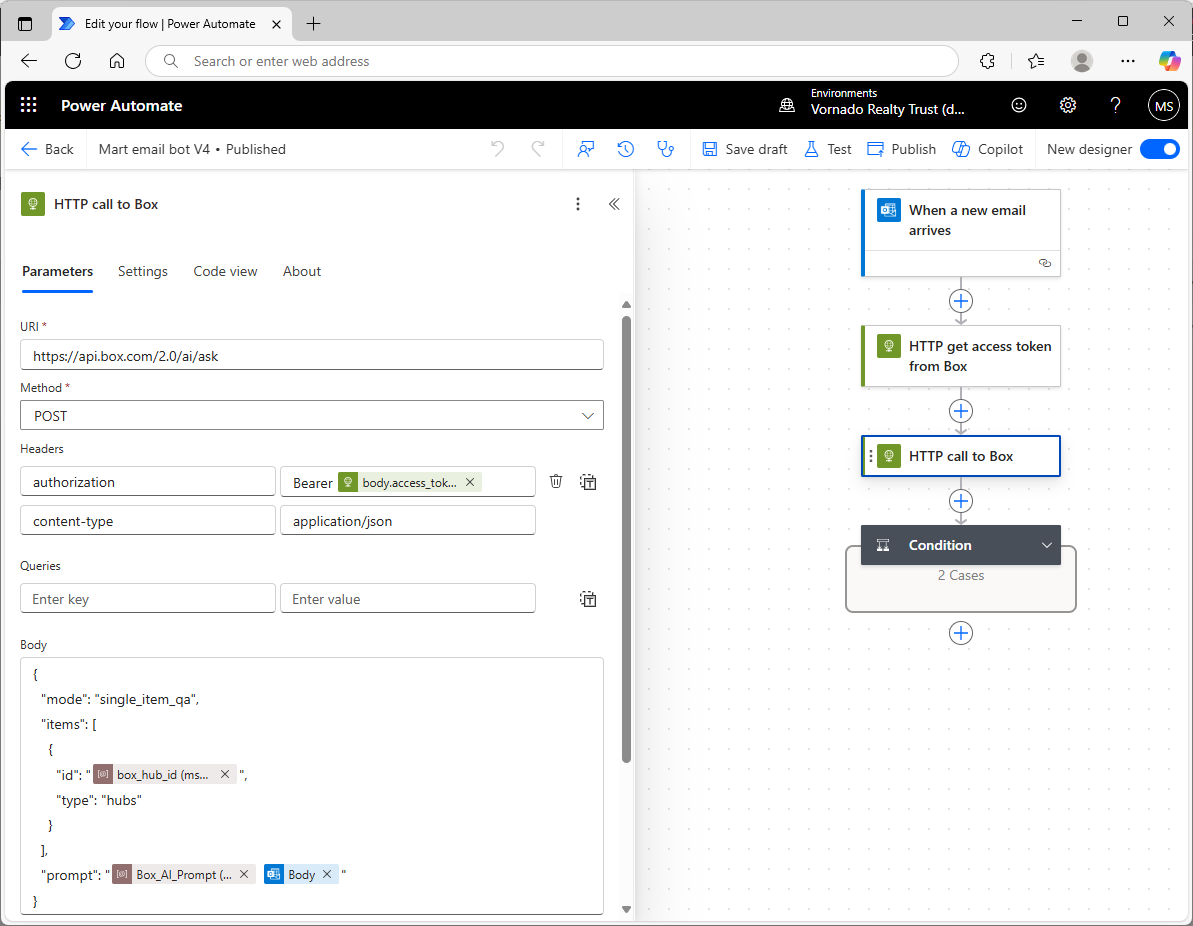
Power Automate has a standard action for making an HTTPS call. Using that, we’ll make a POST to the Box AI API, providing the token we got back from Box in the earlier authentication step, and the Box ID of our hub. We’ll also provide a prompt to Box AI. The prompt contains two parts:
- the contents of a Power Automate environment variable called Box_AI_Prompt (you’ll need to create that in your Power Automate solution), which provides instructions to Box AI regarding what it should do (i.e., create an e-mail reply to an e-mail we receive from our customer, be concise, etc.), and
- the question that the user asked in their e-mail (the e-mail body). This might include some HTML formatting, so the prompt can tell Box AI to ignore that.
Box AI tries to find the answer in the FAQ documents and sends it back in the Box API response. We don’t want any hallucinations, or use of general knowledge the LLM may have picked up in it’s training. So if the answer’s not in the document in Box, our prompt instructs Box AI to simply reply “I don’t know” and nothing further. You will probably need to experiment with your prompt to get the results you want.
Next, we have a Power Automate “condition” step. This is how we implement if-then statements in Power Automate. This step checks whether Box AI replied “I don’t know.” If Box AI didn’t say “I don’t know” then it means it was able to come up with a good answer using the FAQ content in the hub, so Power Automate will send an e-mail reply to the user that sent the original question. If Box AI did reply “I don’t know”, then we don’t send any e-mail reply at all. In that case we’re leaving this question to the people monitoring the e-mail box, and the AI e-mail bot gets out of the way.
Some Advice, and Next Steps
Left to its own devices, Box AI might add superfluous content to the e-mails it generates, such as salutations (“Dear John:”), or it might add a signature to the e-mail. You’ll learn this when you test your bot. In order to ensure you have full control over the content of your replies, it’s best to tell Box AI to suppress this kind of content (do that by giving very clear instructions in your prompt) and just provide the answers directly based only on content in the hub. Then you can wrap the Box API response (in the Power Automate e-mail reply step) with your own signatures, logos, etc.
In the future, it will probably worth trying some of Box’s newer AI functionality. Box AI Studio lets you give the AI agent some additional background, or a kind of “persona.” It also lets you select different LLMs, so it’s probably worth testing these to find out which ones provide the best results for your situation.
 Mike's ML